Table of Contents
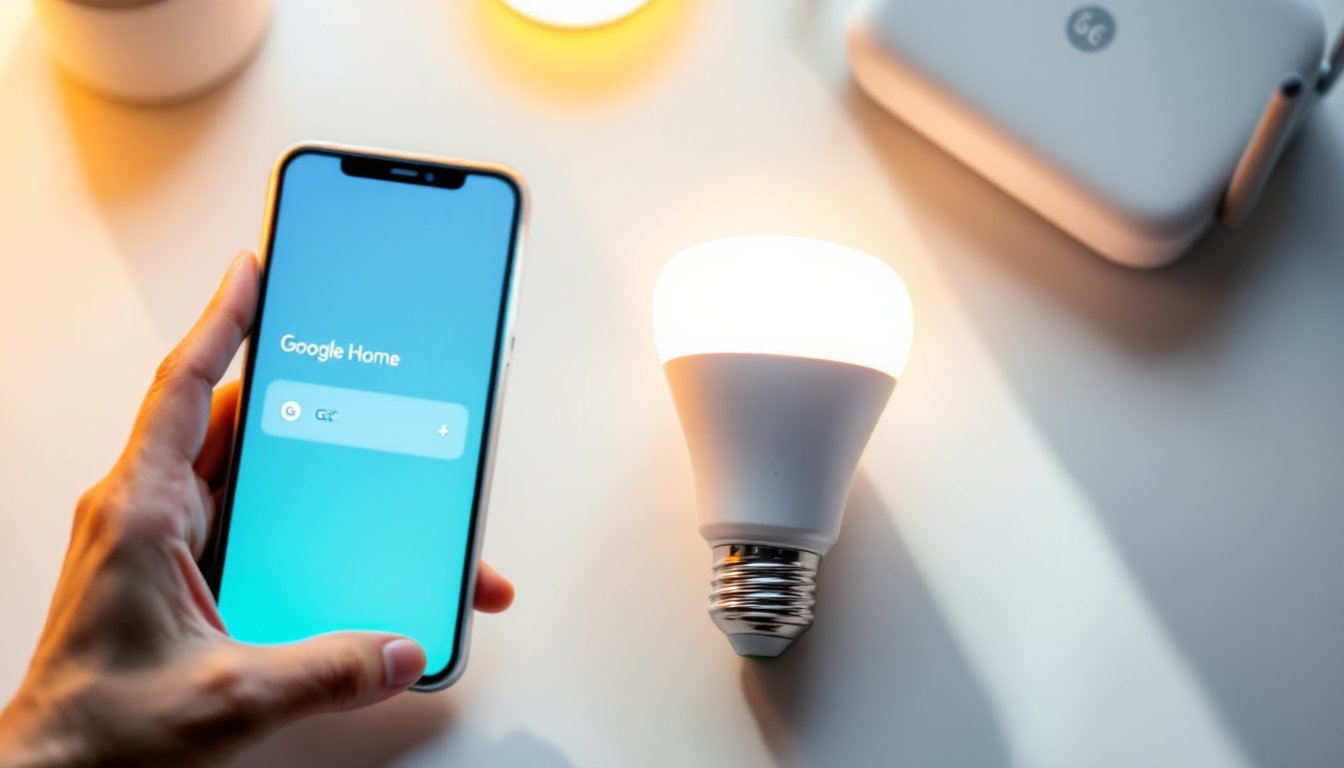
ToggleSmart bulbs might seem like a luxury, but they’re becoming standard in modern homes, and for good reason. GE smart bulbs pair seamlessly with Google Home, letting you control lighting from your phone, voice commands, or automation routines. The good news: connecting them takes about 10 minutes and doesn’t require technical expertise. Whether you’re upgrading a single lamp or outfitting your entire house, this guide walks you through each step so you can get your lights talking to Google Home without frustration.
Key Takeaways
- GE smart bulbs connect to Google Home in about 10 minutes by creating a GE account, scanning your network through the Google Home app, and assigning your bulb a room and name for voice control.
- Your phone and GE bulb must be on the same 2.4 GHz Wi-Fi band during setup, and your router should be 30-50 feet away from the bulb for optimal connectivity when connecting GE smart bulbs to Google Home.
- Common connection issues like failed scans or random disconnects are usually caused by Wi-Fi band mismatches, signal interference from cordless phones or microwaves, or outdated bulb firmware—all of which are fixable with troubleshooting steps.
- Once connected, create automation routines and organize bulbs by room to control multiple lights with simple voice commands like “turn off the bedroom lights” rather than naming each bulb individually.
- Always handle smart bulbs gently and screw them in hand-tight to avoid cracking the internal electronics, and keep your router firmware updated to ensure network stability for your smart home devices.
What You’ll Need Before Getting Started
Before you pull out your screwdriver or unbox anything, gather your materials. You’ll need:
• A GE Cync smart bulb or GE Link smart bulb (the most common GE smart lighting products)
• A compatible light fixture or lamp already installed
• A smartphone or tablet with the Google Home app (free download for iOS and Android)
• A Wi-Fi network with 2.4 GHz and 5 GHz bands (dual-band routers work best: GE bulbs connect to 2.4 GHz)
• Your home Wi-Fi password handy
Check the bulb’s packaging to confirm it’s a GE smart model, not all GE bulbs are smart-enabled. The model number usually starts with “Cync” or “Link.” If you’re replacing an existing bulb, screw the new one in first. Make sure your router is within reasonable range: smart bulbs work best 30-50 feet from the access point, though walls reduce signal strength.
One heads-up: smart bulbs are delicate. Handle them gently and screw them in hand-tight, don’t over-torque or you risk cracking the electronics inside.
Download and Set Up the Google Home App
Start with a clean slate by ensuring you have the latest Google Home app installed. Open your phone’s app store, search for “Google Home,” and install or update it. Launch the app and sign in with the Google account you want linked to your smart home.
Once you’re logged in, you’ll see your home setup screen. If this is your first time, tap the “+” button (usually in the top left corner) and select “Set up device.” Choose “Set up new device in your home” if prompted. The app will ask you to confirm your home address and Wi-Fi network, this matters because Google Home uses your location for automation and routines.
Make sure your phone is connected to the same Wi-Fi network your GE bulb will use. This is critical: the app communicates with your bulb over your home network, so both devices must be on the same Wi-Fi band (2.4 GHz for GE bulbs). If you’re unsure whether your router broadcasts 2.4 GHz, check your router’s settings or your ISP documentation.
Add Your GE Smart Bulb to Google Home
Now comes the moment of truth. Make sure your GE smart bulb is screwed in and powered on. From the Google Home app’s main screen, tap the “+” button and select “Set up device.” Choose “Works with Google” (or “Works with your existing account”) if it appears, then search for “GE” or “Cync” in the list of compatible brands.
Tap on the GE or Cync option and you’ll be prompted to log in or create an account with GE’s app (Cync or the legacy GE app, depending on your bulb model). Some users find this step confusing, so here’s the reality: Google Home doesn’t directly control every bulb, it uses GE’s cloud servers as a middleman. You’ll need to create a GE account (or sign in if you already have one) to link your bulbs. This takes about two minutes and requires an email address.
Once you’ve linked your GE account to Google Home, the app will scan your network for available bulbs. This is where your bulb needs to be powered on and within Wi-Fi range. The scan usually takes 30-60 seconds. When your bulb appears, tap it to select it, then assign it a room (bedroom, kitchen, living room, etc.) and a descriptive name like “Desk Lamp” or “Bedside Light.”
Google Home suggests names based on the room, but you can customize them. Shorter, clear names work best for voice commands, “living room light” is easier to say than “the light fixture in the northeast corner of the living room.” Tap Finish or Done, and your bulb should now appear in your Google Home app and be controllable via voice or phone.
Troubleshooting Common Connection Issues
If your bulb doesn’t show up during the scan or loses connection shortly after, don’t panic, this is usually fixable. Here are the most common culprits and solutions.
WiFi and Network Problems
The most frequent issue is Wi-Fi connectivity. GE smart bulbs use 2.4 GHz Wi-Fi exclusively: if your router has split 2.4 GHz and 5 GHz bands, your phone might be on 5 GHz while the bulb can’t find the 2.4 GHz signal. Solution: Open your phone’s Wi-Fi settings and temporarily switch to the 2.4 GHz band during setup, then switch back if you prefer. Check your router’s admin panel to confirm 2.4 GHz is enabled, some users accidentally disable it.
Another common issue: distance and signal strength. Smart bulbs work best close to your router. If your bulb is in a distant bedroom or behind metal file cabinets, move it (or the router temporarily) closer for initial pairing. Once paired, GE bulbs can handle weaker signals, but initial setup is finicky about connection strength. Poor Wi-Fi signal causes timeouts and failed scans, so if you’re in a dead zone, that’s your culprit.
If your bulb connects but then disconnects randomly, check for interference. Cordless phones, microwaves, and some baby monitors broadcast on the 2.4 GHz band and can jam the signal. Move the bulb away from these devices or switch the interfering device to a different frequency if possible. Also verify that your router hasn’t applied a “client limit” or MAC filtering that blocks new devices, check your router settings if you have many connected devices.
One more thing: if you’ve paired the bulb before but it’s not showing up now, reset the bulb. Turn it off for 10 seconds, turn it back on, then turn it off and on again within two seconds three times in a row. The bulb should flash or cycle colors, indicating a reset. Start the pairing process again from the Google Home app. Resets clear old pairing data and can solve “ghost device” issues where the bulb is half-connected and won’t respond.
If you’ve walked through all of this and still have trouble, check whether your GE bulb’s firmware is up to date. Open the GE Cync app (if you use that model) and look for firmware updates. Google Home sometimes won’t recognize older bulbs with outdated firmware, so this step matters. Updates usually happen automatically, but manually checking doesn’t hurt.
Optimize Your Smart Home Setup for Success
Once your GE bulbs are connected, a few tweaks will make your smart home run smoother. First, create automation routines. In Google Home, tap the Routines tab and set up a “Good Morning” routine that turns on your bedroom light at a set time, or a “Movie” routine that dims the lights to 30% brightness. GE smart bulbs support dimming from 1-100%, so you can fine-tune every scene.
Second, organize your bulbs by room. If you’ve named them well and assigned them to rooms in the setup process, controlling multiple bulbs is simple, say “Hey Google, turn off the bedroom lights” instead of naming each bulb individually. Groups make voice control natural and faster.
Third, keep your router firmware updated and your Wi-Fi network password secure. Smart home devices depend on your network’s stability, and outdated router software can introduce connection hiccups. Most modern routers auto-update, but it’s worth checking your router’s admin panel once every few months.
For deeper dives into smart home planning, resources like a smart home devices guide can help you expand beyond lighting. If you’re building a multi-device smart home, understanding how voice assistants interact with different ecosystems prevents buying incompatible gear down the road. The how to set up smart home devices guide covers installation best practices that apply whether you’re adding a second bulb or wiring in a smart thermostat.
When troubleshooting becomes frustrating, external resources like how to connect smart bulbs to Google Home and how to set up smart lights with Google Home provide additional perspectives. Sometimes seeing the same instructions phrased differently clicks. If you’re starting from scratch with Google Home itself, how to set up Google Home walks through the foundational setup.
Conclusion
Connecting your GE smart bulb to Google Home is straightforward once you know the sequence: prepare your hardware, set up the app, link your GE account, and troubleshoot any network hiccups. Most setups work on the first try. The 10 minutes you spend now pay off every time you dim the lights with a voice command or automate them to turn on at sunset. Smart lighting is one of the easiest entry points into home automation, and GE bulbs are reliable, affordable, and widely supported by Google Home.